Focus Block Guide
Start a Focus Block
Step 1 · Extension
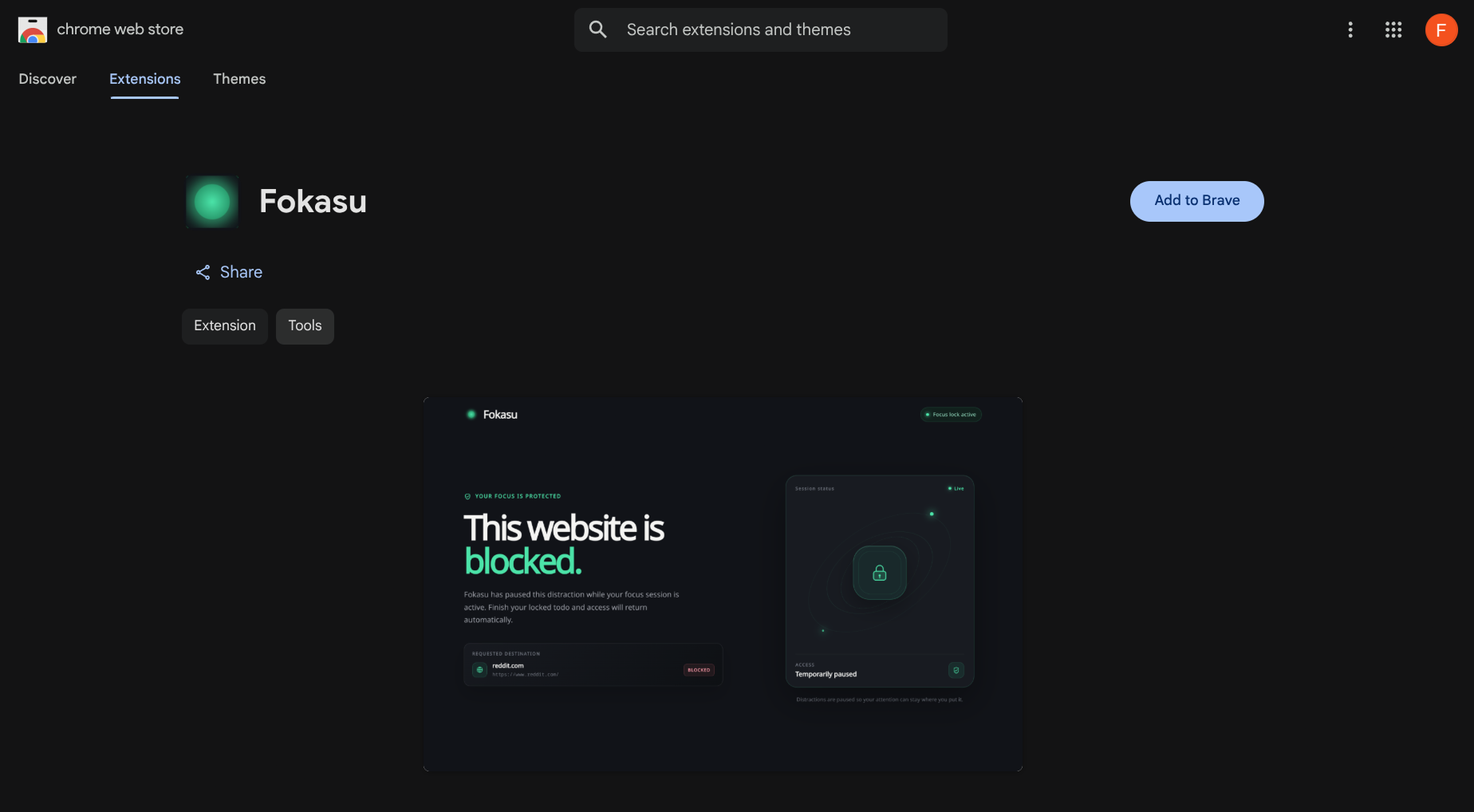
Install Fokasu extension from here.
Incognito access lets Fokasu enforce your block there too. Your website data stays inside your browser and is used only for blocking.
Step 2 · Focus goal
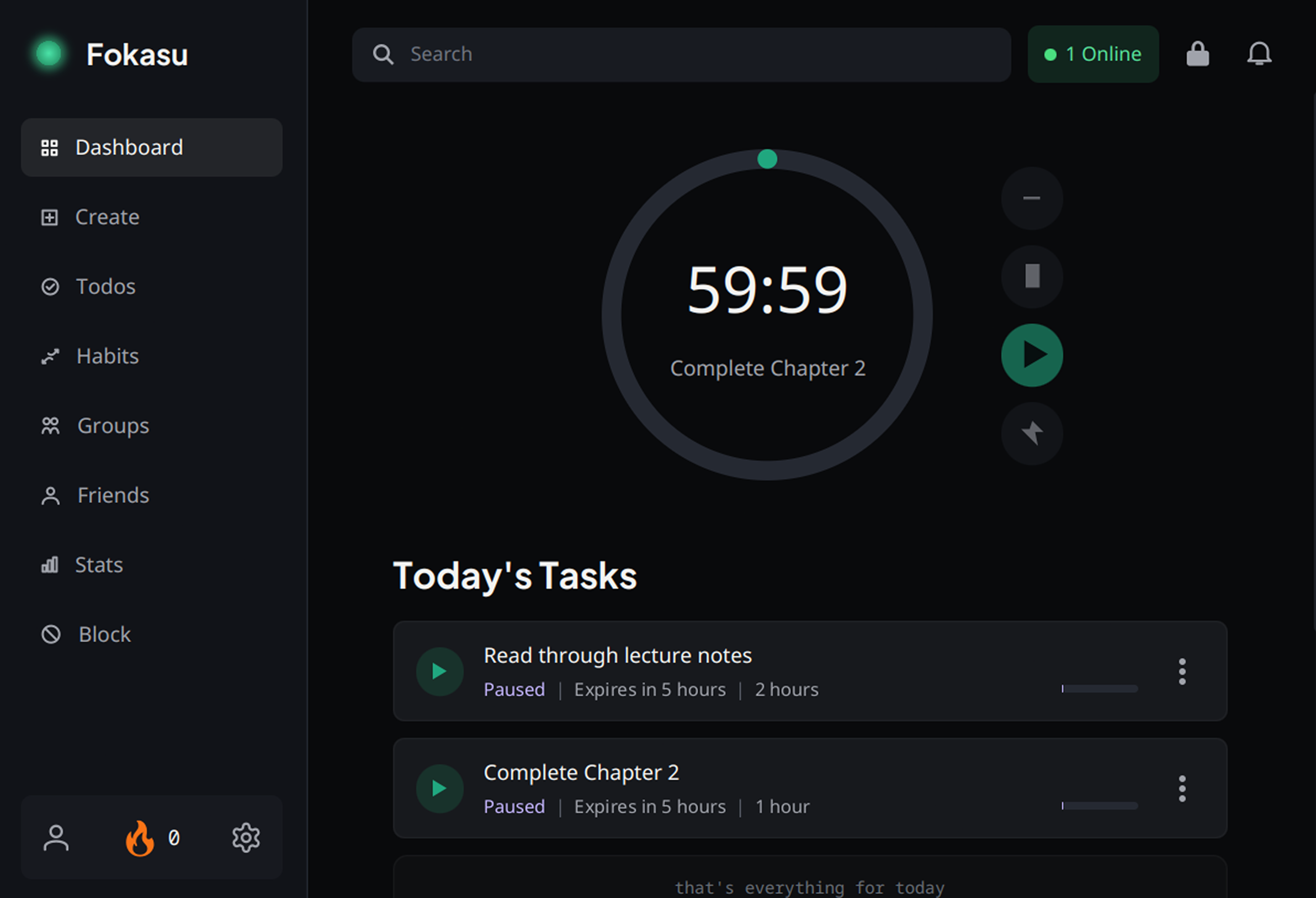
Open the Fokasu desktop application and click the lock icon.
Click the lock icon in the header (beside the online status information) to begin setting up your focus goal.
Step 2 · Focus settings
Set your focus time.
Choose how long you want to focus. If this is your first run, try a one-minute commitment to learn the flow.

Step 3 · Block active
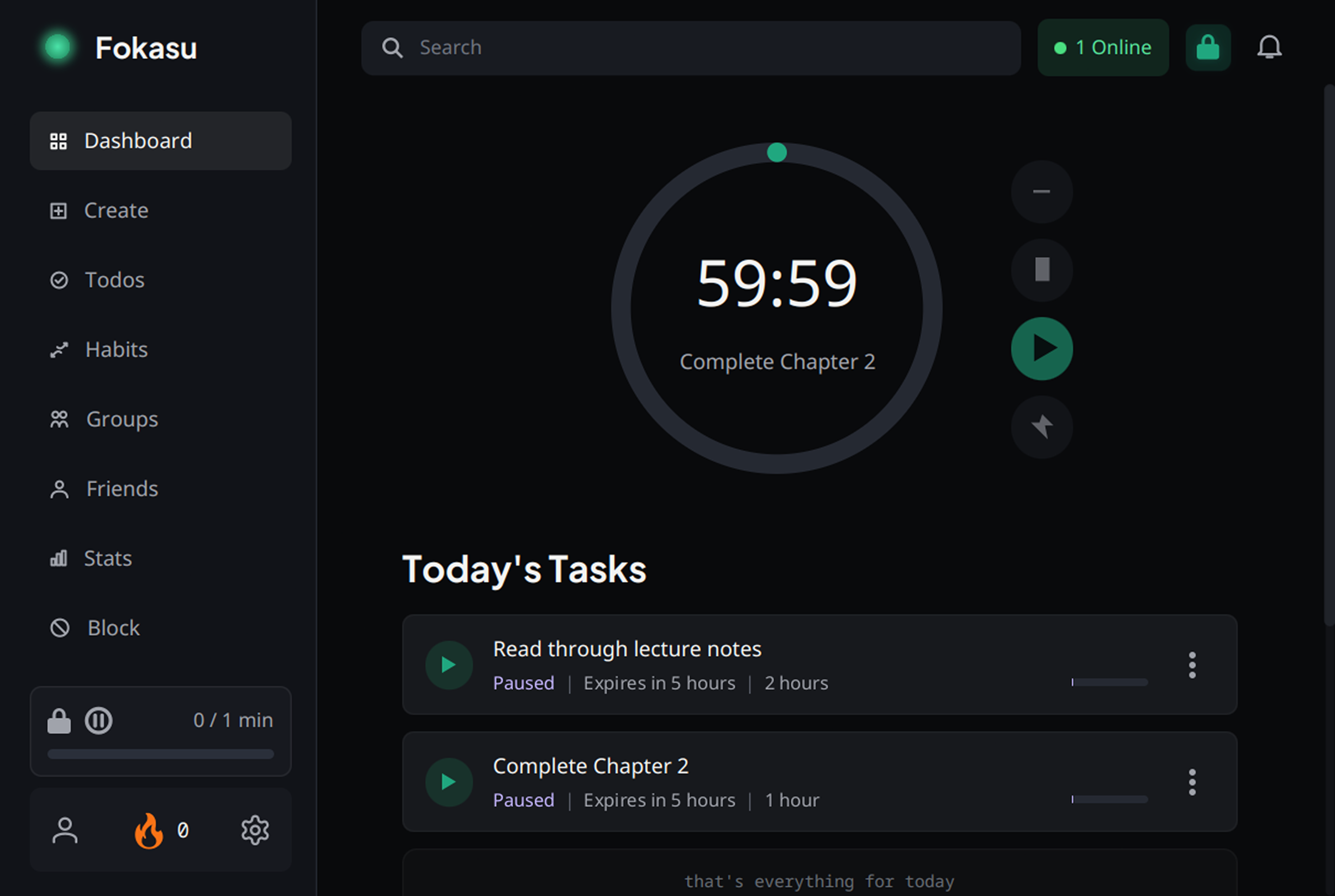
The sidebar shows that your Focus Block is running.
The progress bar begins at zero and grows as completed todo time counts toward your focus goal.
Step 4 · Block list
Add the websites you want out of reach.
Open Block from the sidebar, enter a website or
keyword, then select the plus button. For example,
reddit.com blocks Reddit.
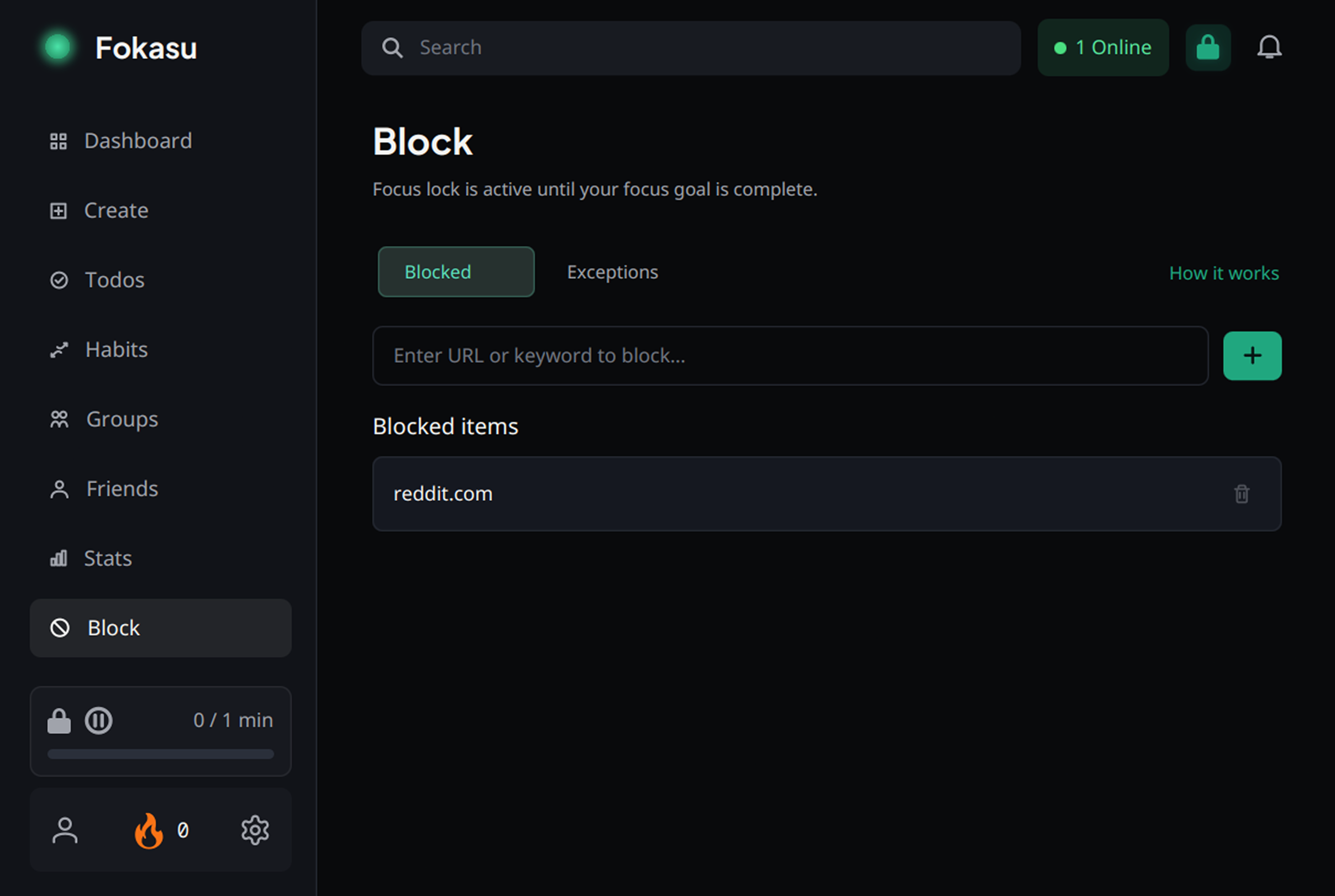
Step 4 · Applications
Block distracting desktop applications too.
Open the Applications tab, search your installed applications, then select the checkbox beside each application you want Fokasu to block.
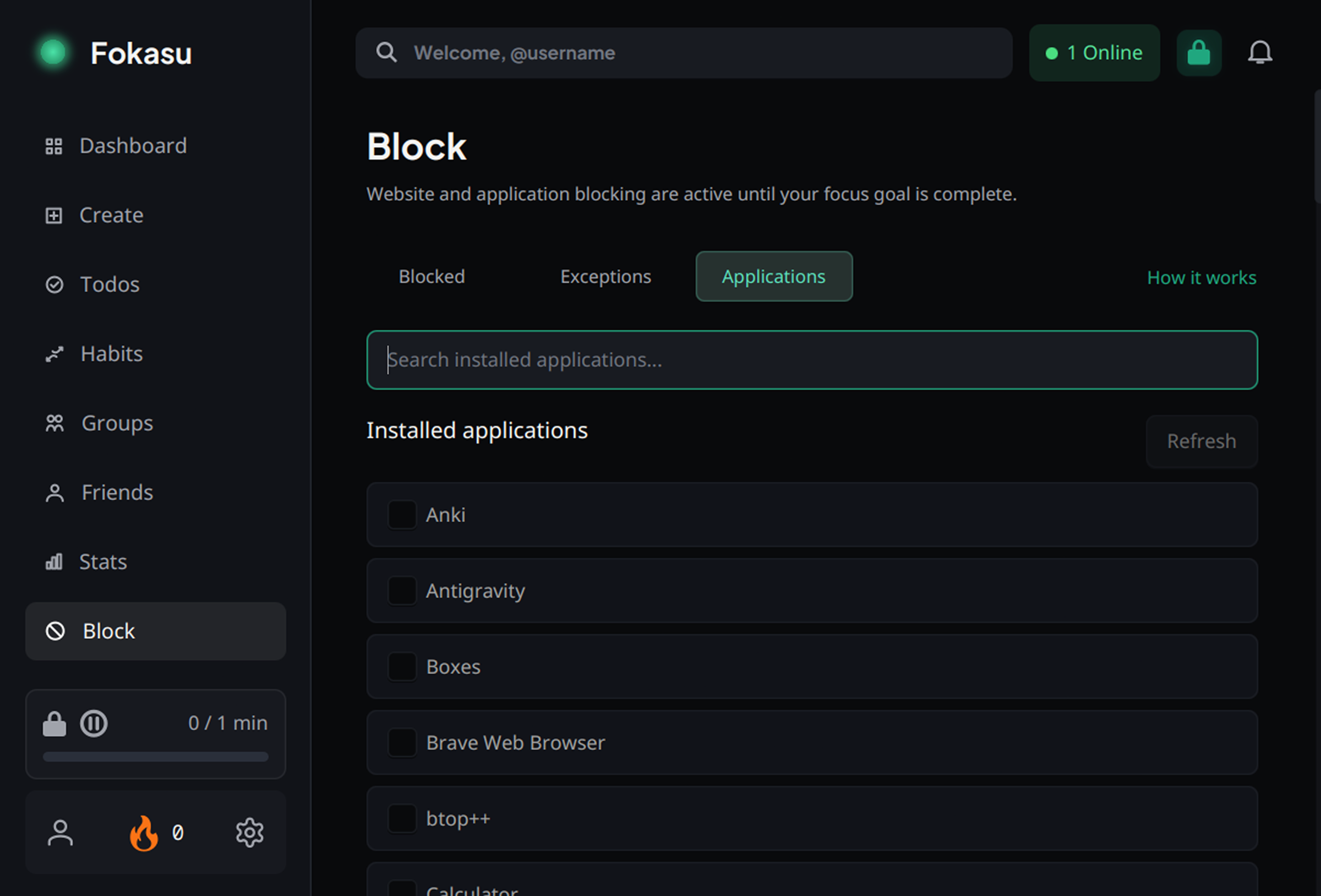
Step 5 · Try it
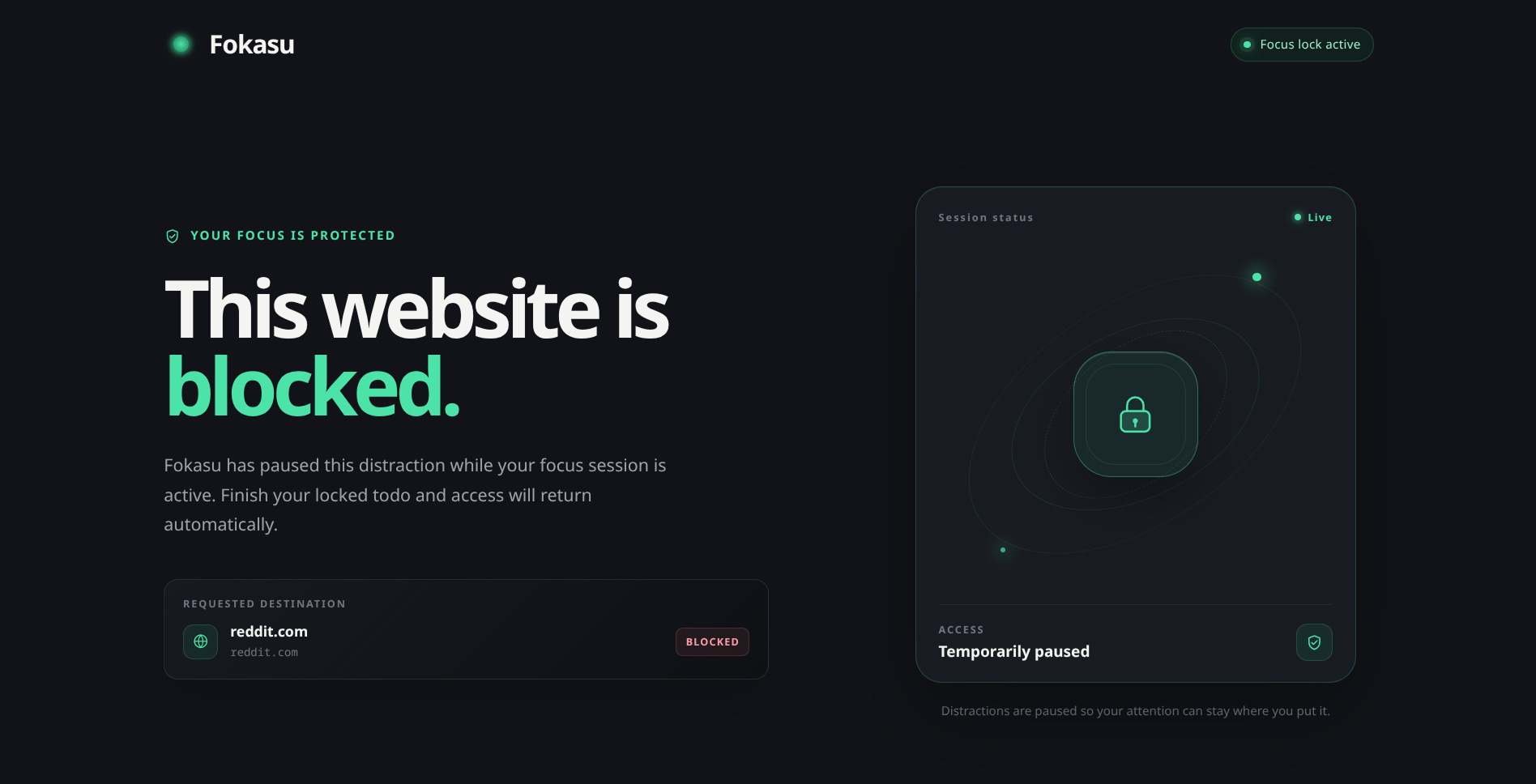
Open the site. Fokasu stops it.
The block page confirms that your focus session is active. Even if you quit Fokasu or restart your computer, the block remains enforced.
Finish a Focus Block
Step 6 · Create a todo
Give the todo an estimated focus time.
Create a todo from the sidebar's Create button or shortcut Ctrl + Shift + T.

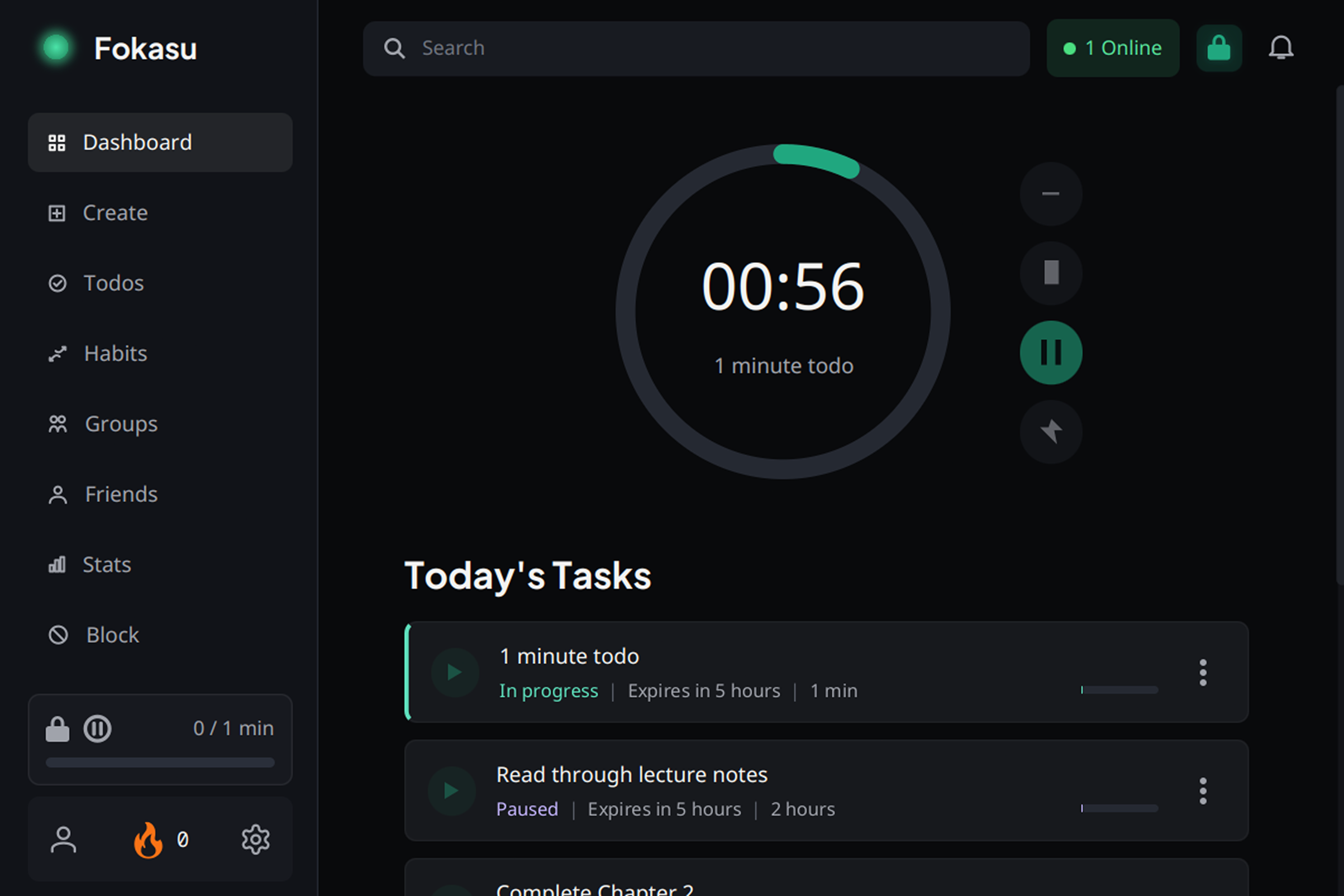
Step 6 · Earn progress
Complete the todo to advance your focus goal.
Start the todo and finish its focused time. Once completed, the completed time contributes to the committed focus time.
Step 7 · Goal met
Complete your committed focus goal to unlock the block list.
Finish one one-minute todo—or two 30-second todos. Completed time adds together.
Optional
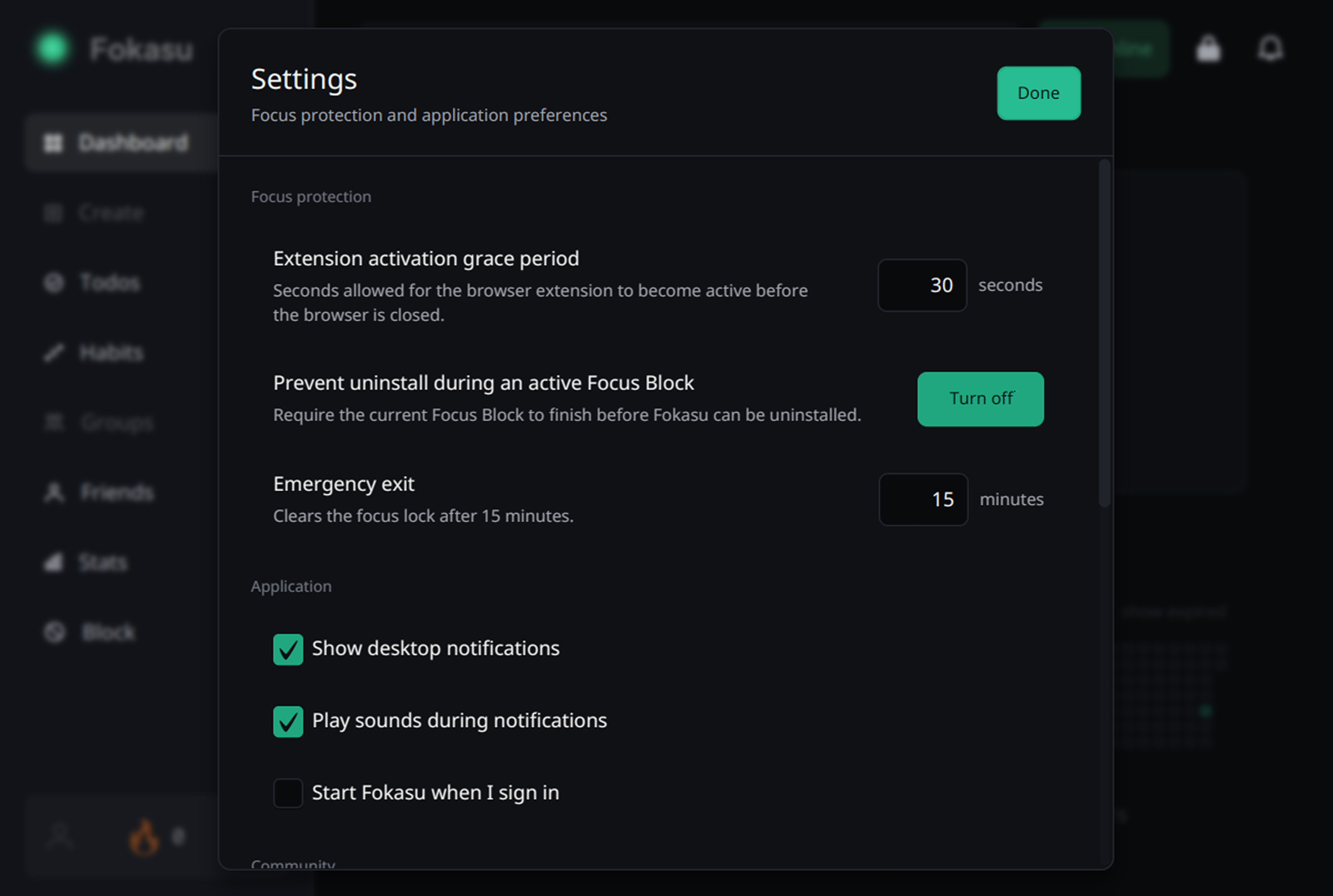
Settings · Preferences
Fine-tune protection and application behavior.
Open Settings to adjust these optional safeguards and desktop preferences.